Add your Shopify or Etsy shop to Printify
PallFlow publishes through Printify, so your Shopify store or Etsy shop must be added inside Printify first. Here is how and how to check it.
Updated · 4 min read
On this page
PallFlow creates your products in Printify, and Printify publishes them to your store. For that to work, your Shopify store or Etsy shop must be added inside Printify. You do this once per store, in Printify, not in PallFlow.
Where to find it
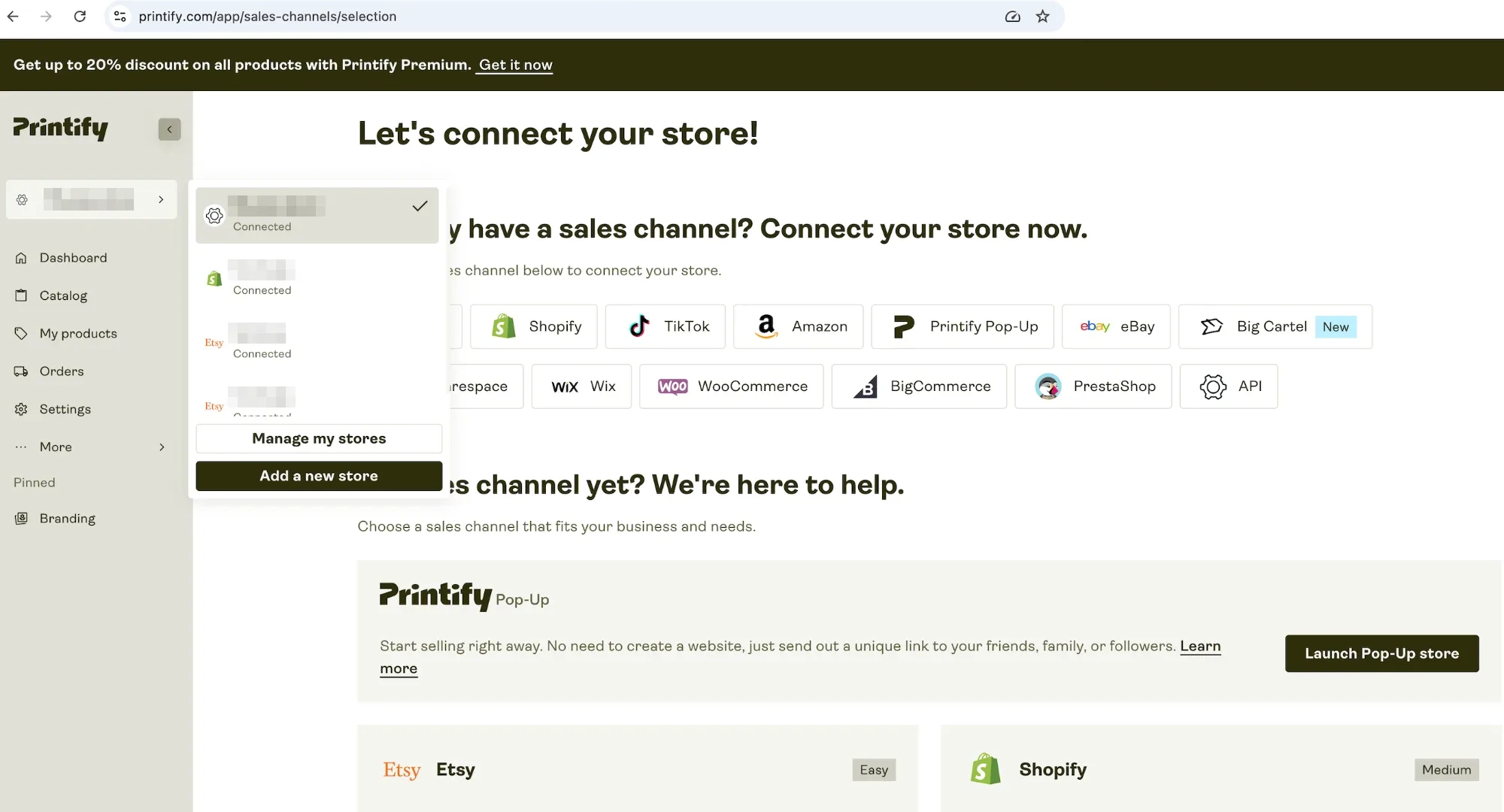
- In Printify: click your store name at the top of Printify's left menu, then Add a new store. Or go straight to printify.com/app/sales-channels/selection.
- In PallFlow: you see the result in design step 2 under Sales channel, and in automations under Your stores on Printify.
Before you start
- Connect Printify in PallFlow with a token from the same Printify account you're adding the store to.
- Be ready to sign in to your Shopify admin or your Etsy shop as the owner. Printify asks you to approve access.
Step by step
- Sign in to Printify.
- Click your store name at the top of the left menu. A list of your Printify stores opens.
- Click Add a new store.
- On Let's connect your store!, click Shopify or Etsy.
- Follow Printify's steps to give Printify access to your store.
- Repeat for every store you want to sell in. One Printify account can hold several stores.
Then connect the same store in PallFlow too, if you haven't yet: Shopify or Etsy. You need all three connections: Printify in PallFlow, your store in Printify, and your store in PallFlow.
What you'll see
In Printify, the store appears in the store list (click your store name at the top of the left menu) as Connected.
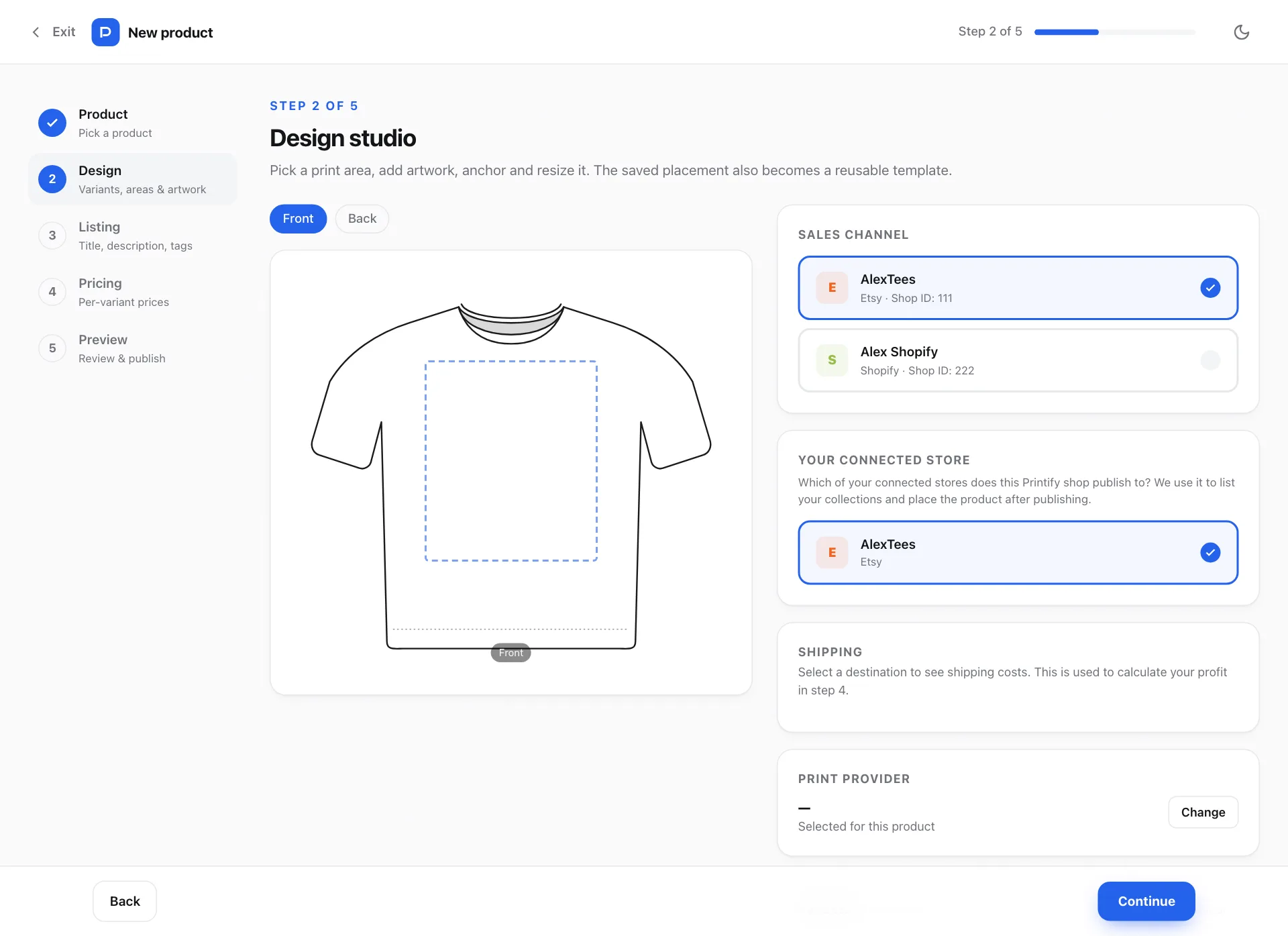
In PallFlow, design step 2 has two cards on the right:
- Sales channel lists every Printify shop whose sales channel is Shopify or Etsy, each with its name and a line such as Shopify · Shop ID: 1234567. Pick the one you want to publish to.
- Your connected store asks "Which of your connected stores does this Printify shop publish to?" Pick the matching store from My Stores. PallFlow uses it to list your collections or sections and to place the product after publishing.
Printify doesn't tell PallFlow which web address belongs to which Printify shop, which is why you match them yourself. Make sure you pick the same store in both cards.
Note: Only Shopify and Etsy stores are listed. Other Printify store types, such as a manual or API store, Pop-Up, eBay or TikTok, don't appear in PallFlow.
Credits and limits
- Free in PallFlow. Printify's own terms apply to the stores you add there.
- No limit on the number of stores. PallFlow lists all Shopify and Etsy stores in the connected Printify account.
Troubleshooting
"No Shopify or Etsy stores found on your Printify account." Your Printify account has no Shopify or Etsy store yet, or the store is a different type (for example a manual or API store). Add the store in Printify as above, then reload the PallFlow page. If you have several Printify accounts, check that your PallFlow token comes from the account that holds the store.
"No shop found on your Printify account. Open Printify → My Stores → Add new store, then try again." Shown when you publish and Printify has no shop at all. Add your store in Printify, then click publish again.
"Could not load stores from Printify: …" Printify didn't answer, or it no longer accepts your token. Wait a minute and reload. If it keeps happening, update your Printify API key.
"No Shopify or Etsy store connected to PallFlow." Shown in Your connected store. The store is in Printify but not yet on My Stores. Click Connect a store in Settings → My Stores → and connect it.
"Please select a sales channel before continuing." Pick one of the shops under Sales channel before you go on to the next step.
"Select the store to publish to before publishing." No connected store was picked for this product, or the store was disconnected on My Stores. Connect the store, then choose it under Your connected store in step 2.
My store is in Printify but not in the Sales channel list Check in Printify that the store still shows Connected and that it's a Shopify or Etsy store. Then reload design step 2.