Install the PallFlow browser extensions
Download the Printify Assistant and Etsy Sections Chrome extensions, load them in Chrome, sign in, choose a mode and keep them updated.
Updated · 6 min read
On this page
PallFlow has two Chrome extensions for Etsy sellers. They do the Etsy jobs that have to happen in your own browser: getting your mockups and charts onto Etsy listings through Printify, putting products into your shop sections, and adding your reels to Etsy listings. If you only sell on Shopify, you don't need them.
| Extension | What it does | It also needs |
|---|---|---|
| PallFlow Printify Assistant | Uploads your mockups, size charts and color charts to Printify's mockup library for your Etsy products, in the right order. | Printify connected in PallFlow, your Etsy shop added to Printify, and you signed in to printify.com in Chrome. |
| PallFlow Etsy Sections | Reads your Etsy shop sections once a day, puts each published product in the section you chose for it, and adds the reels you send from step 5 to the Etsy listing (Product videos). | Your Etsy shop connected under My Stores, and you signed in to etsy.com in Chrome. |
Where to find it
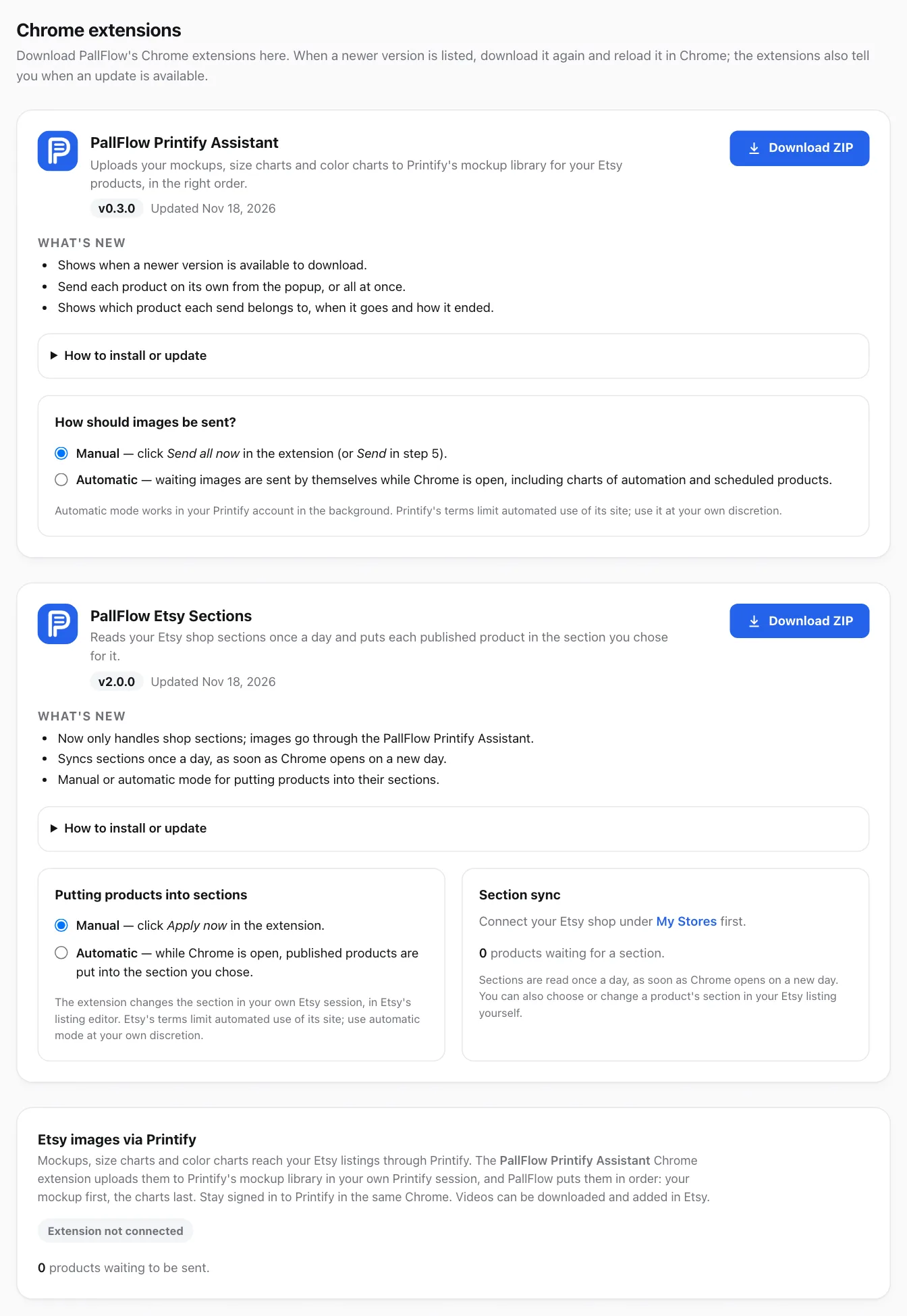
Click Settings → Extensions in the sidebar, or open Extensions. The page, titled Chrome extensions, shows each extension with its version, the date it was Updated, a What's new list, a Download ZIP button and the How to install or update steps.
Before you start
- Use Google Chrome on a computer.
- The extensions aren't in the Chrome Web Store. You install them from a ZIP file as an "unpacked" extension, which takes a minute.
- Sign in to PallFlow in the same Chrome you install them in.
Step by step: install an extension
- On Settings → Extensions, click Download ZIP on the extension's card.
- Unzip the file. You get a folder named
pallflow-printifyorpallflow-etsy-sections. Move it somewhere you won't delete it: Chrome loads the extension from this folder every time. - In Chrome, open
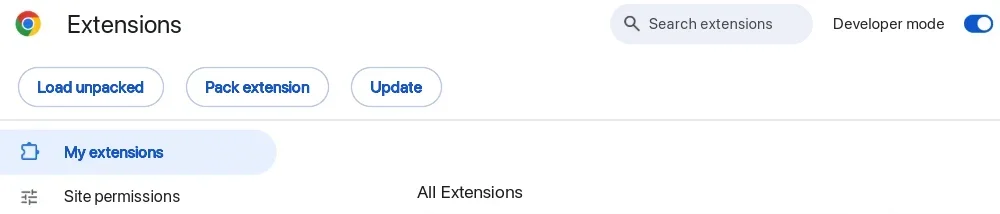
chrome://extensions. - Turn on Developer mode in the top-right corner.
- Click Load unpacked and select the folder from step 2.
- Click the puzzle icon in Chrome's toolbar and pin the extension so its icon stays visible.
- Click the extension's icon and then Sign in with PallFlow.
Repeat for the second extension if you need both.
Signing in
- Printify Assistant: a PallFlow tab opens and says Connecting the extension to your PallFlow account…, then Connected as (your name). You can close this tab. If PallFlow asks you to sign in first, do so, then click Sign in with PallFlow in the extension again.
- Etsy Sections: it uses your PallFlow session in this browser. If you are signed in to PallFlow, it connects right away. If not, a PallFlow sign-in tab opens: sign in there, then click Sign in with PallFlow in the extension again.
Once connected, the extension shows Signed in as (your name). Use Sign out at the bottom of the extension window to disconnect it.
Note: Etsy Sections stays signed in in one browser at a time. Signing in on another computer or browser signs out the first one. The Printify Assistant can be signed in in several browsers.
Choose a mode
Each extension has a Manual and an Automatic mode. You can switch on Settings → Extensions or in the extension window; both change the same setting.
| Extension | Manual | Automatic |
|---|---|---|
| Printify Assistant | Images wait until you click Send all now in the extension, or Send in design step 5. | Waiting images are sent by themselves while Chrome is open, in a background tab. |
| Etsy Sections | Sections wait until you click Apply now or Apply all now in the extension. | Published products are put into their sections while Chrome is open. |
Videos don't depend on the mode: a reel you send from step 5 is added within about a minute after you click Add to Etsy listing, even if you click it on another computer. If the product isn't on Etsy yet, it's added a few minutes after it gets there. Chrome must be open on the computer where the extension runs.
Automatic mode works in your own Printify or Etsy session in the background. The Extensions page reminds you that Printify's and Etsy's terms limit automated use of their sites, so automatic mode is used at your own discretion.
Keep the extensions updated
When a newer version is available, the Extensions page lists the new version and what changed, and the extension window shows Version … is available (you have …) with a Download link.
- Click Download ZIP again.
- Unzip it over the old folder, replacing the files.
- Open
chrome://extensionsand click the reload button (↻) on the extension's card.
You stay signed in after an update.
What the toolbar icon tells you
- Printify Assistant: a number shows how many products are ready to send. It turns amber when Printify needs you to sign in, and shows ! when your PallFlow sign-in expired.
- Etsy Sections: a number shows how many products are waiting for a section, and ! when your PallFlow sign-in expired.
Under Advanced in each extension, leave PallFlow address set to https://www.pallflow.com. Changing it signs you out.
Credits and limits
The extensions are free and don't use credits.
Troubleshooting
I don't see Load unpacked.
Turn on Developer mode in the top-right corner of chrome://extensions.
Chrome says the manifest file is missing.
You selected the ZIP file or the wrong folder. Unzip first, then select the folder whose name starts with pallflow-.
"Open this page from the PallFlow Printify Assistant extension." You opened the connect page directly. Click Sign in with PallFlow inside the extension instead.
"Install the PallFlow Printify Assistant extension in Chrome, then sign in from it again." The page couldn't find the extension. Make sure it is installed and enabled in this Chrome, then sign in from the extension.
"The extension did not answer. Make sure it is installed and enabled, then try again."
Turn the extension on in chrome://extensions (or reload it there), then click Sign in with PallFlow again.
"Sign in to PallFlow in the tab that opened, then click Sign in again." Etsy Sections needs you signed in to PallFlow in this browser. Sign in in the new tab, then click Sign in with PallFlow in the extension.
"PallFlow did not accept the sign-in. Try again." Reload the PallFlow tab, make sure you are signed in, and click Sign in with PallFlow again.
"Your PallFlow sign-in expired. Sign in again from the extension." Open the extension and click Sign in with PallFlow. For Etsy Sections this also happens when you signed in on another browser.
The extension disappeared from Chrome. The folder was moved or deleted. Download the ZIP again and load it with Load unpacked.