Step 3: Write the listing
Write the title, description and tags shoppers see, or let the AI listing studio draft them for Etsy or Shopify.
Updated · 4 min read
On this page
Step 3 sets the text of your listing: the title, description and tags. Write them yourself, or let the AI listing studio draft them from your product and artwork, then edit. All three fields are required before step 5 can create the product on Printify.
Where to find it
Step 3 (Listing details) of the wizard. Open a draft from My Designs with Resume, or click Listing in the step list.
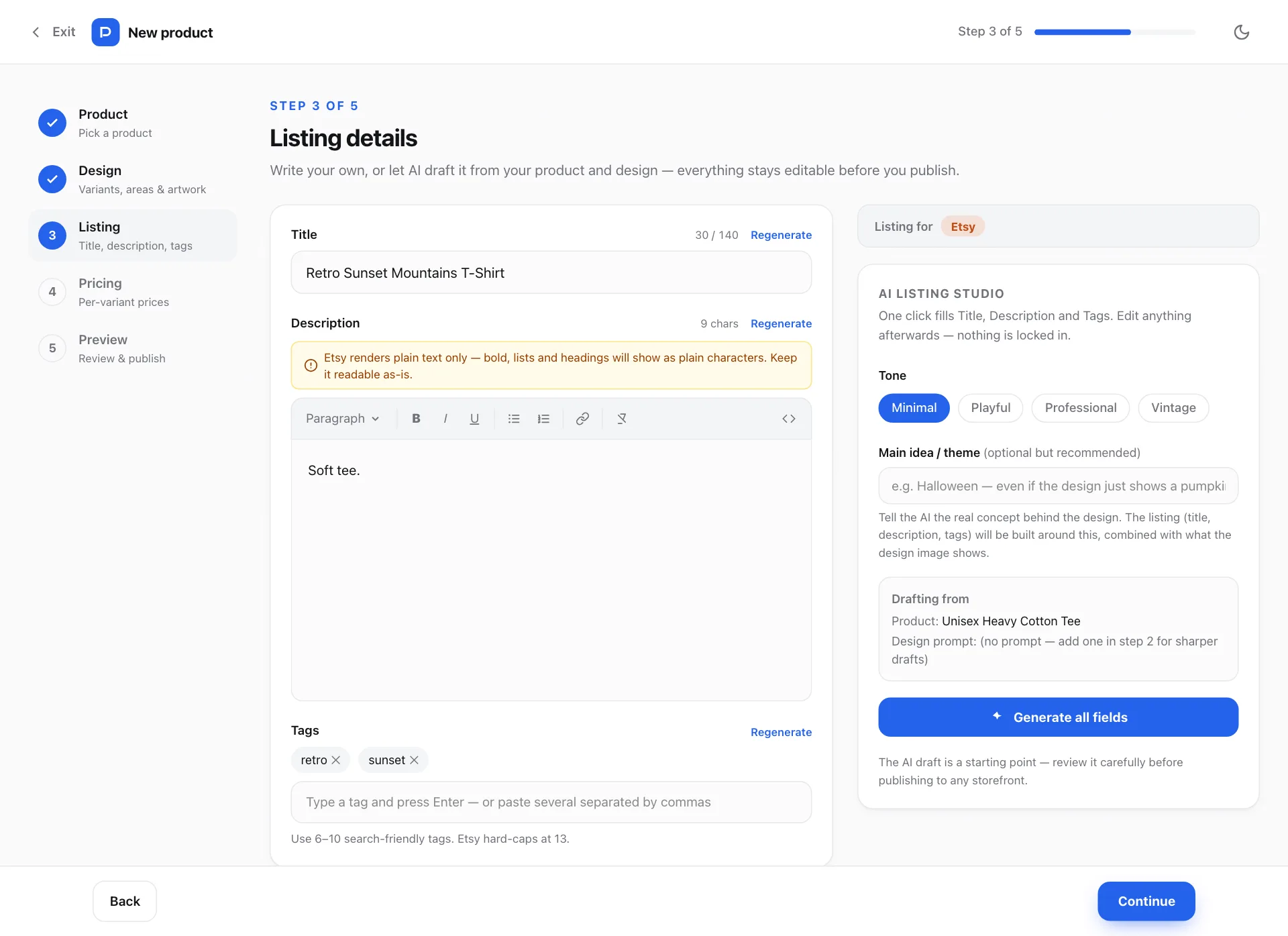
The fields
Title
- Up to 140 characters. The counter (0 / 140) turns red from 130 characters.
- Etsy allows 140 characters. Shopify allows longer titles, but this box stops at 140.
- When the product is sent to Printify, PallFlow removes HTML, markdown, quotes and extra spaces from the title, and shortens it if it's too long.
Description
A text editor with a toolbar:
- A style menu: Paragraph, Heading 1, Heading 2, Heading 3
- Bold, italic and underline (⌘B, ⌘I, ⌘U)
- Bullet list and numbered list
- Insert / edit link: type a URL in the Insert link box and click Apply, or Remove to unlink. Links open in a new tab.
- Clear formatting
- Toggle HTML source, to edit the raw HTML
The counter shows N chars. For Etsy you'll also see: Etsy renders plain text only — bold, lists and headings will show as plain characters. Keep it readable as-is. Keep Etsy descriptions as simple paragraphs.
Tags
- Type a tag and press Enter, or paste several separated by commas.
- Click ✕ on a tag to remove it. Duplicates are ignored.
- The hint says: Use 6–10 search-friendly tags. Etsy hard-caps at 13.
- Etsy: at most 13 tags, each up to 20 characters, using letters, numbers, spaces and - ' ™ © ®. Shopify: up to 250 tags, each up to 255 characters. Extra or too-long tags are removed automatically when the product is sent to Printify.
Use the AI listing studio
- Check the Listing for badge (Etsy or Shopify). It comes from the Sales channel you picked in step 2. To write for the other platform, change the sales channel in step 2 first.
- Pick a Tone: Minimal (default), Playful, Professional or Vintage.
- Optional but recommended: type a Main idea / theme (up to 500 characters), for example Halloween — even if the design just shows a pumpkin. The AI builds the title, description and tags around it, combined with what your artwork shows. It's saved with the design.
- Drafting from shows the product and design prompt the AI uses.
- Click Generate all fields (3 credits). The button shows Drafting…, then all three fields are filled in, replacing what was there.
- To redo one field, click Regenerate next to it: title (1 credit), description (2 credits) or tags (1 credit). Only that field is replaced.
- Edit anything you like, then click Continue.
Good to know:
- The AI looks at your artwork image, so add artwork in step 2 first.
- Etsy drafts: titles up to 140 characters and up to 13 tags. Shopify drafts: shorter titles (up to 70 characters), and the product's size table is added to the description when Printify has a size guide.
- AI results are saved to your design right away. Your own edits are saved only when you click Continue. Back doesn't save.
- The AI draft is a starting point. Read it carefully before publishing.
What happens next
- Step 5 shows a Listing card with your title, the description as plain text, and your tags.
- When step 5 sends the product to Printify, PallFlow checks the listing against the platform's rules. It fixes what it can: removes formatting from the title, shortens long titles, splits tags saved as one piece of text, removes duplicate or too-long tags and keeps the first 13 tags for Etsy. The fixed version is saved. If something can't be fixed, such as an empty title or no usable tags, the product isn't sent (see Troubleshooting).
Credits and limits
| Action | Cost |
|---|---|
| Generate all fields | 3 credits |
| Regenerate title | 1 credit |
| Regenerate description | 2 credits |
| Regenerate tags | 1 credit |
Credits are charged only when the AI returns a result. You need the full amount in your balance before you click. Writing the listing yourself is free.
Troubleshooting
"Insufficient credits. You need N credits." Your balance is too low for this action. Buy extra credits or write the text yourself.
"AI draft failed. Try again.", "Etsy listing generation failed for: …" or "Shopify listing generation failed for: …" The AI couldn't finish one of the fields. Nothing is charged. Try again.
"Network error — could not reach the AI endpoint." Check your internet connection and try again.
"Design listing is incomplete — missing: title, description, tags" Shown in step 5. Fill in the fields it names here and click Continue.
"The product listing can't be sent to your store: … Fix it in the Listing step and try again." The listing couldn't be repaired automatically. The message names the problem, for example Title is empty., Title has no readable text., Tags are missing. or No usable tags are left after cleaning. Fix that field here and click Continue.
The listing was written for the wrong platform Change Sales channel in step 2, click Continue, then generate again.