Draft mode and approvals
Choose between publishing immediately and saving drafts, and find the Pending approvals page where you publish automation drafts.
Updated · 3 min read
On this page
Each automation has a publish mode. Publish immediately sends every new product straight to your store. Save as draft creates the product in Printify but keeps it unpublished until you approve it. Draft mode is the safer choice while you're still checking what an automation produces.
Where to find it
- Choose the mode: in step 4 (Store) of the wizard, under Publish mode.
- Approve drafts: go to Sidebar → Settings → Automations (Automations), click Logs on the automation, then click ⏳ Pending approvals at the top right. The button shows how many products are waiting. Pending approvals isn't linked from the automation list itself, only from Logs.
The two modes
| Publish immediately | Save as draft | |
|---|---|---|
| In Printify | Product created and published | Product created, not published |
| In your store | Listed once Printify finishes publishing | Not listed until you publish it |
| Log entry | 🎉 Published: "… was published to your Etsy store." | ⏳ Draft: "✅ … is ready and waiting for your approval." |
| Credits | Charged when the product is created | Charged when the product is created (approving costs nothing) |
| Daily limit | Counts | Counts |
New automations start with Save as draft selected. The step 4 text says you approve drafts in Printify. You can do that, or use PallFlow's Pending approvals page as described below.
Step by step: approve a draft
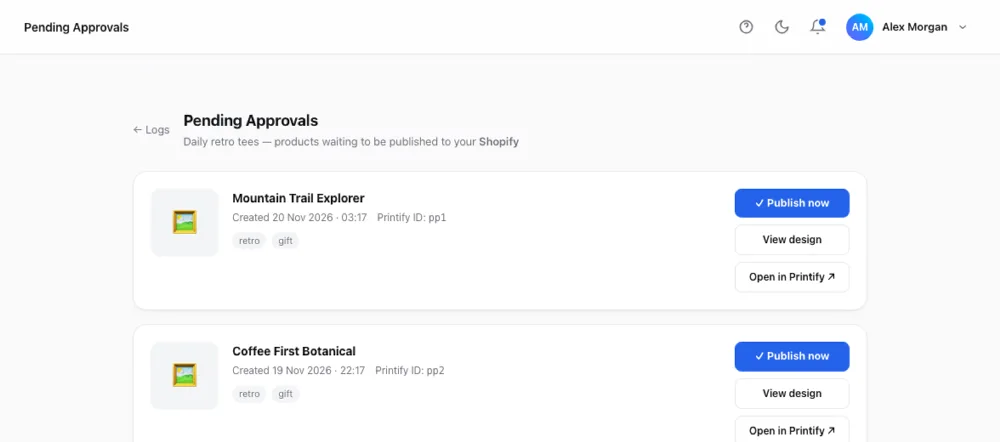
- Open Logs for the automation and click ⏳ Pending approvals.
- Each pending product shows its preview, title, creation time, Printify ID and up to five tags.
- To check the listing first, click View design. To check it in Printify, click Open in Printify ↗.
- Click ✓ Publish now. If it works, you'll see Product published successfully! and the log entry changes to Published.
- If ✓ Publish now shows an error page or nothing changes, click Open in Printify ↗ and publish the product from Printify. It then goes live in your store, but PallFlow keeps showing it under Pending approvals and as Draft in Logs.
Tip: To change a draft's title, description or tags before it goes live, edit them in Printify (Open in Printify ↗), then publish there.
When "Publish immediately" products show as Draft
Sometimes a product in Publish immediately mode ends up as Draft with "is ready and waiting for your approval":
- Printify hadn't finished the product's mockup images when the product was created, so it wasn't published.
- Printify accepted the publish request but hadn't confirmed it a few seconds later.
These products also appear under ⏳ Pending approvals. Click Open in Printify ↗ first. If the product is already published there, you don't need to do anything. If it isn't, publish it as described above.
Change the mode
Click Edit on the automation, go to step 4, choose the other Publish mode and click Continue →. The change applies to products created from then on. Products that already exist keep their state.
What you'll see
- Logs: the Pending approval card counts products waiting. Drafts show ⏳ and a yellow Draft label.
- Pending Approvals page: when nothing is waiting, you'll see 🎉 Nothing pending and "All products have been published."
- Shopify collections you picked in step 4 are assigned once PallFlow knows the product is published, through Publish immediately or ✓ Publish now. If you publish a draft in Printify instead, add it to the collection in your Shopify admin yourself.
Credits and limits
- A draft costs the same as a published product: 10 credits for an AI design plus 3 credits for the listing, charged when it's created.
- Approving or publishing a draft costs no credits.
Troubleshooting
"This product is already published." The product was approved before. No action is needed.
✓ Publish now leads to an error page, or nothing changes Use Open in Printify ↗ and publish from Printify. If Printify won't publish either, check that your shop is still connected in Printify and that Printify is connected on My Stores.