Upscale images and remove backgrounds
AI images are upscaled 4× and get a transparent background automatically; upscale any image that was saved at its original size from the Library.
Updated · 3 min read
On this page
Print providers need large, clean files. PallFlow takes care of this for the images it generates: every AI image gets a transparent background and is upscaled to 4× its size before it's saved. If an image ever ends up saved without the upscale, an Upscale button on its card lets you fix it.
Where to find it
Sidebar → Media Library → Library tab, on the full page. Go to Media Library.
The badges and the Upscale button appear on the info strip under each card. They aren't shown in the smaller library pop-up of the product wizard.
How it works
Background removal
- Images from ✦ Generate and ⚡ Bulk prompts are created on a plain background and cut out automatically, so they arrive as transparent PNGs. You'll see Removing background… in the status while an image is generated.
- There's no separate background-removal button. Images you upload are used exactly as they are, so upload a PNG that already has a transparent background, especially for dark products.
- In the large view, transparent areas show as a checkerboard. Use it to check the cut-out before you put the image on a product.
Upscaling
- Every image from ✦ Generate is upscaled to 4× its width and height as part of generation, and its card shows Upscaled.
- Images from ⚡ Bulk prompts are upscaled the same way. If the upscale step fails, the image is still saved at its original size, marked Not upscaled, and you're not charged for it.
- Uploaded images can't be upscaled in PallFlow, and their cards have no upscale badge. Upload the largest version you have.
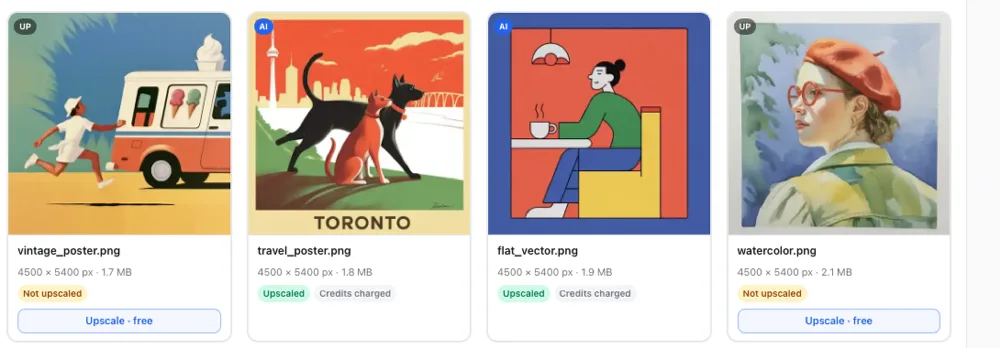
Step by step: upscale an image later
- On the Library tab, find a card with the Not upscaled badge. Hover over the badge to see why it wasn't upscaled. Tip: filter by AI.
- Click the button under the card:
- Upscale · … credits when you weren't charged for the image (badge No credits charged);
- Upscale · free when you already paid for the image.
- The button shows Upscaling… (up to a minute).
- When it's done, the card refreshes with the larger image, its new size, and the Upscaled badge.
What happens next
- The card keeps its name, group and history; only the file is replaced by the 4× version.
- Products already made from the image keep their current file. If the image was already used in a design or automation, the old file stays for those products; new designs use the larger file.
- If the image was never used, the old small file is deleted and your storage is updated. The new file is larger, so your storage use goes up.
Credits and limits
- Background removal and upscaling during generation are included in the image price (10 credits).
- Upscale later: 3 credits if you weren't charged for the image, free if you were. Credits are only taken when the upscale succeeds.
- Only AI images marked Not upscaled can be upscaled. One upscale per image at a time.
- Upscaled files are bigger and count toward storage. See Storage usage and storage fees.
Troubleshooting
"Insufficient credits. You need … credits to upscale this image." Your balance is below the upscale cost. Buy extra credits and try again.
"This image does not need an upscale." The image is already upscaled, or it's an upload. Refresh the page to see its current status.
"This image is already being upscaled." An upscale for this image is running, maybe in another tab. Wait a minute and refresh.
"Upscale failed. Please try again later." The upscale didn't finish. Nothing changed and you weren't charged. Try again later.
My uploaded image has a white or colored background on the product Uploads aren't cut out automatically. Remove the background in an image editor, export a transparent PNG and upload it again.