Retention rules
Set rules that automatically set to draft or delete published products that do not sell enough within a period, and review every removal.
Updated · 4 min read
On this page
Retention rules keep your catalog fresh. A rule looks for published products that haven't sold enough over a period you choose, and sets them to draft or deletes them in Printify. Every rule change and every removal is recorded.
Where to find it
Click Settings → Retention in the sidebar, or open Retention. The page is titled Product Retention. Click History to open Retention History.
Before you start
- Rules only look at products you published through PallFlow, which have a Printify product behind them. Products you created elsewhere are never touched.
- Sales are counted from your Printify orders, which PallFlow syncs once a day. Orders that don't go through Printify aren't counted.
- Your Printify account must be connected under Settings → My Stores.
How a rule decides
A product is removed when both of these are true:
- It was published at least Period days ago. Newer products are never touched.
- It sold at most Max sales items in the last Period days (all quantities on orders placed in that window).
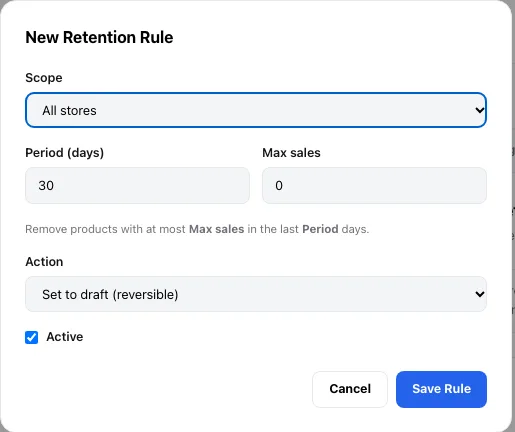
Example: Period 30 and Max sales 0 removes products that were published at least 30 days ago and had no sales in the last 30 days.
Step by step
- Click + New Rule. The New Retention Rule window opens.
- Choose the Scope: All stores, or Specific store and then the Store (your Etsy and Shopify stores are listed, for example YourShop (Etsy)).
- Set Period (days): from 1 to 3650, 30 by default.
- Set Max sales: from 0 to 100000, 0 by default.
- Choose the Action:
- Set to draft (reversible) — PallFlow marks the product as not visible in Printify. It is not deleted, so you can bring it back from Printify later.
- Delete permanently — the window warns: "Delete permanently removes the product from Printify. This cannot be undone."
- Leave Active ticked.
- Click Save Rule. You'll see Retention rule created.
What happens next
- Rules run automatically once a day at 05:00 UTC, one hour after PallFlow syncs your Printify orders.
- Each matching product is handled once. After a rule has set it to draft or deleted it, no rule looks at it again.
- PallFlow doesn't send an email or notification. Check History to see what was removed.
- With Delete permanently, the product is deleted from Printify. Printify handles what happens to the live listing; if it is still visible in your store afterwards, remove it in Etsy or Shopify.
- There is no undo button in PallFlow. Drafted products are brought back from Printify.
The rules list
Each rule shows its Scope (All stores or the store name), the Rule (for example ≤ 0 sales in 30 days), the Action (Draft or Delete) and the Status (Active or Off).
- Edit opens Edit Retention Rule. Change the fields and click Save Rule. You'll see Retention rule updated.
- Delete asks Delete this retention rule? Products already removed stay as they are. and then shows Retention rule deleted.
To switch a rule off without deleting it, click Edit, untick Active and click Save Rule. Its status changes to Off and it stops running. Tick Active again to switch it back on.
Retention History
Retention History is a permanent record of every rule change and product removal, 30 entries per page, newest first. Each row shows the Event, the Product (PallFlow product number and Printify product ID), the Details and When it happened.
| Event | What it means |
|---|---|
| Product Delisted | A product was removed. Details shows the action, the sales in the window and the threshold, for example Draft — 0 sales in 30d (threshold ≤ 0), plus the sales channel. |
| Rule Created, Rule Updated, Rule Deleted | You added, changed or removed a rule. |
| Evaluation Skipped | The product matched, but PallFlow couldn't find your Printify connection or shop for it, so nothing was changed. |
| Evaluation Error | Printify returned an error. Details shows it. The product is checked again on the next daily run. |
Credits and limits
- Retention rules are free and don't use credits.
- Period: 1 to 3650 days. Max sales: 0 to 100000.
- Rules run once a day.
Troubleshooting
"The target store connection id field is required when scope is store." You chose Specific store without picking a store. Choose one in Store, or switch the scope to All stores.
"The inactive days field must be at least 1." or "The max sales field must not be greater than 100000." Period (days) must be 1 to 3650 and Max sales 0 to 100000.
A product was removed even though it sold. Sales come from Printify orders synced once a day. Sales that didn't go through Printify, or orders placed before the sync, aren't counted. Compare with the Orders page, and use a longer period or a higher Max sales if needed.
Nothing has been removed yet. Products must have been published at least Period days ago, and rules run once a day. Check History for Evaluation Skipped or Evaluation Error rows, and make sure Printify is connected.
I want to pause a rule. Click Edit, untick Active and click Save Rule. The rule shows Off until you tick Active again.