Profile, password and appearance
Change or set your PallFlow password, switch between light and dark mode, and find every settings page in one place.
Updated · 4 min read
On this page
The Settings page holds your account basics: your profile, your password, the light or dark theme and a shortcut to your plan and credits. It is also the starting point for every other settings page.
Where to find it
Click Settings in the sidebar, or open Settings. The settings pages are always listed under Settings in the sidebar, so you can jump to any of them from anywhere in the app.
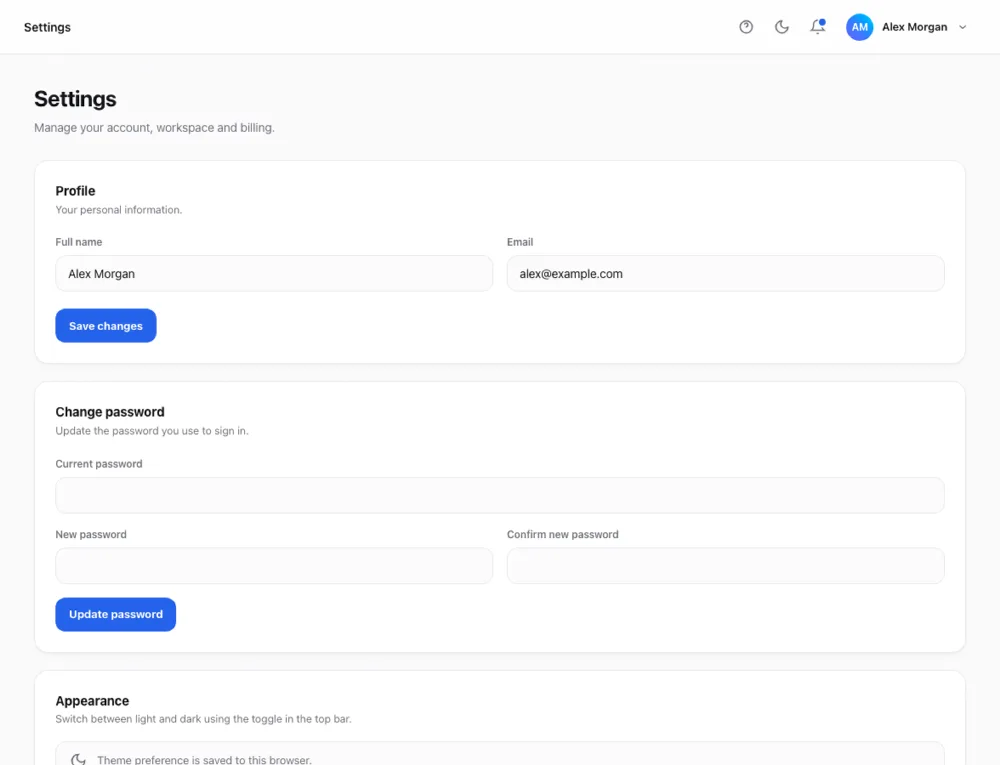
Profile
The Profile card shows the Full name and Email on your account.
- Change Full name, Email or both.
- Click Save changes.
- A new name is saved right away. You'll see "Your profile has been updated."
- A new email isn't used until you confirm it. PallFlow sends a link to the new address and you'll see "We sent a confirmation link to … Your email changes when you click it." Your current address also gets a short notice about the change.
- Click Confirm new email in that email within 24 hours. You'll see "Your email is now …". From then on, sign in with the new address. Until you click it, keep signing in with your current email.
"The email has already been taken." — another PallFlow account uses that address. Use a different one.
"This link is no longer valid." — the link is older than 24 hours, or your email was changed in the meantime. Save the new email again to get a fresh link.
Change or set your password
The title of the password card depends on how you created your account:
- Change password — you already have a password. You'll need it to choose a new one.
- Set a password — you signed up with Google and don't have a password yet. The card says: "You signed in with Google and don’t have a password yet. Set one to also sign in with your email."
Step by step
- In Current password, type the password you use today. This field only appears if you already have a password.
- In New password, type your new password. It must be at least 8 characters long.
- Type the same password again in Confirm new password.
- Click Update password (or Set password if you signed up with Google).
What you'll see
A green message appears above the form:
- Your password has been updated. — you changed an existing password.
- Your password has been set. You can now sign in with your email and password too. — you set your first password.
You stay signed in. If you signed up with Google, you can keep using Sign in with Google; the password is simply a second way in.
Appearance
Switch between light and dark mode with the Theme button (the moon icon) in the top bar. It works on every page, not only in Settings.
Your choice is saved in the browser you are using. Another browser or computer starts in light mode until you switch it there too.
Billing & Credits
The last card shows your current balance ("You currently have … credits."). Manage plan, payments & cancellation → and Buy Credits both open Plans, where you change your plan, buy credit packs, update your card or cancel.
All settings pages
| Sidebar item | What it's for | Help |
|---|---|---|
| Pricing | Markup profiles that pre-fill your retail prices | Pricing margin profiles |
| Media Groups | Folders for your Media Library images | Media groups |
| Billing | Your name, address and tax details for invoicing | Billing information |
| My Stores | Connect Printify, Shopify and Etsy | Manage and disconnect stores |
| Extensions | Download the PallFlow Chrome extensions | Install the browser extensions |
| Retention | Rules that remove products that don't sell | Retention rules |
| Automations | Products created and published on a schedule | What automations do |
| Brand | Logo and colors for charts and reels | Brand profiles |
| Plans | Your plan, credit packs, payments and cancellation | Plans and subscriptions |
| Credits History | Every credit added or spent | Credits history |
Several settings pages also show a row of tabs at the top (Pricing, Media Groups, Billing, My Stores, Retention, Automations) so you can switch between them quickly.
Troubleshooting
"The current password is incorrect." The password in Current password doesn't match the one on your account. Check for typos and Caps Lock. If you forgot it, sign out and click Forgot? on the sign-in page to reset it by email.
"The new password confirmation does not match." New password and Confirm new password are different. Type the same password in both fields.
"The password field must be at least 8 characters." Choose a longer password.
"The current password field is required." You left Current password empty. Fill it in, or reset your password with Forgot? on the sign-in page if you don't remember it.
I signed up with Google and can't sign in with my email. You don't have a password yet. Sign in with Google, open Settings and use Set a password.
Dark mode keeps switching back to light. The theme is stored in your browser. Private windows and cleared browser data forget it. Click Theme again in a normal window.