Upload Etsy listing images with the Printify Assistant
How the Printify Assistant extension gets your mockups and charts onto Etsy listings through Printify: queueing, sending, photo order and fixing stuck sends.
Updated · 7 min read
On this page
Your Etsy listings get their photos through Printify. The PallFlow Printify Assistant Chrome extension uploads your PallFlow mockups, color charts and size charts into the product's mockup library on printify.com, in your own Printify session. PallFlow then puts the photos in order, and Printify sends them to your Etsy listing.
Where to find it
- Install it from Extensions (Settings → Extensions). See Install the PallFlow browser extensions.
- Choose how images are sent under How should images be sent? on its card.
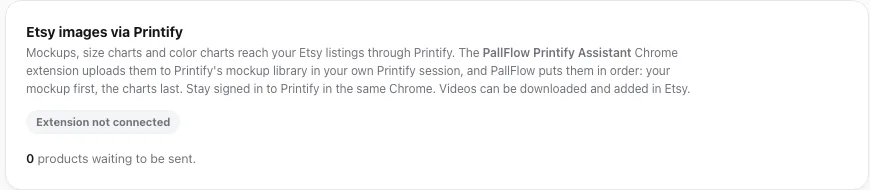
- The Etsy images via Printify card at the bottom of the page shows whether the extension is connected, how many products are waiting, and anything that needs your attention.
- Day to day, you use it from its icon in Chrome's toolbar.
Before you start
- The assistant is for Etsy products created in PallFlow (they have a Printify product). Shopify product images are sent directly; see Send product images to Shopify and Etsy.
- Printify must be connected in PallFlow, and your Etsy shop added to Printify.
- Install the extension and sign in with PallFlow.
- Sign in to printify.com in the same Chrome, with the Printify account PallFlow is connected to.
How images get queued
- Design step 5: click Send to store under a mockup, or Send to Etsy (last photo) under the color chart or size chart. Charts can be sent once the product is published.
- AI Mockups page: click Send to store under a mockup.
- Automations: the color and size charts of each Etsy product an automation creates (or that you approve) are queued automatically.
- Scheduled products: the mockup you picked for the schedule and the charts are queued when the product publishes.
When you click a send button, PallFlow confirms, for example "Queued. The PallFlow Printify Assistant sends it to Etsy through Printify." If the product isn't published yet: "Queued. The PallFlow Printify Assistant adds it to the product in Printify; Printify sends it to Etsy when the product is published." If the extension is installed and signed in, PallFlow asks it to start right away and a Printify tab opens. The button shows Sending… until the image has gone.
Step by step: send waiting images (Manual mode)
- Make sure you are signed in to printify.com in Chrome.
- Click the extension's icon. Waiting to send lists each product with its images, its status and when it was queued.
- Click Send now on one product, or Send all now to send every ready product one after another.
- A Printify tab opens on the product's mockup library. The extension uploads each image and confirms it. Leave the tab open and don't click around in it until it finishes.
- PallFlow saves the photo order in Printify. If the product is already live on Etsy, PallFlow then republishes only its photos.
- The product moves to Recent with the status Done.
Automatic mode: while Chrome is open, the extension checks every minute and sends ready products by itself in a background tab, one product at a time. If an automatic send fails, it waits 30 minutes before sending automatically again; you can still click Send now in the meantime.
Status labels
| Badge | Message | What it means |
|---|---|---|
| Waiting | Waiting for Printify to finish preparing the product. | Printify is still creating the product. PallFlow checks again every 5 minutes. |
| Waiting | Waiting for the previous send of this product to finish. | Another send for the same product is still running. |
| Ready | Ready. Click "Send all now" to send it. (or Will be sent automatically in a minute or two.) | Waiting for you (Manual) or for the next check (Automatic). |
| Sending | Uploading to Printify now…, Saving the photo order in Printify…, Added to Printify. Publishing the new photos to Etsy… | In progress. |
| Done | Done. The new photos are on your Etsy listing. or Done. Added to the product in Printify; they go to Etsy when you publish it. | Finished. |
| Needs attention | Sign in to Printify in this browser, then send again., Stopped to keep your photos safe; the Printify photos were put back. Try again from PallFlow. or Could not be sent. | See the fixes below. |
Recent shows the sends of the last 3 days.
Photo order on Etsy
- Your PallFlow mockups come first. The first one becomes the main photo.
- Next come the other photos that were already selected on the Printify product.
- The color chart comes next and the size chart is last. Printify's own size chart image is removed.
- Etsy allows 20 photos. If there are more, Printify's generated mockups are dropped first (from the end), then other uploaded images. Your main photo and charts are always kept.
- A new chart replaces the previous chart PallFlow uploaded for that product.
Important: When the product is already on Etsy, PallFlow republishes only the photos; the title, description and prices aren't changed. Etsy's photos are replaced by the Printify selection, so photos you added directly on Etsy are replaced.
Videos aren't uploaded. Download them in PallFlow and add them to the listing on Etsy.
Fix a stuck send
Open Settings → Extensions and scroll to Etsy images via Printify.
- The badge shows Extension seen … ago, or Extension not connected if it has never signed in.
- … products waiting to be sent. counts the queue.
- Needs your attention lists up to 10 products with their status (Sign in to Printify in Chrome, then send again, Needs a look in Printify or Could not be sent) and the error.
For each product:
- Try again puts the send back in the queue. You'll see The job will run again. If the page reloads without a message, the send can't be retried right now, for example because another send for the same product is open.
- Restore original photos asks Put back the photos this product had in Printify before PallFlow changed them? and then shows The original Printify photos were restored. If the product is on Etsy, its photos are republished too.
Credits and limits
- The assistant is free and doesn't use credits. (Creating AI mockups does; see Generate AI mockups.)
- It sends one product at a time per account.
- Each product gets up to 5 attempts before it shows Could not be sent. A single send stops after 15 minutes.
- Up to 20 photos per Etsy listing.
Troubleshooting
"Install the PallFlow Printify Assistant extension in Chrome to send this image to Etsy." or "Install or enable the PallFlow Printify Assistant extension to send this image to Etsy."
PallFlow couldn't reach the extension. Click Download and set it up in the notice, or turn the extension on in chrome://extensions. The image stays queued.
"Open the PallFlow Printify Assistant extension and sign in, then send again." Click the extension's icon, then Sign in with PallFlow.
"Printify asked to sign in. Sign in to Printify in this browser, then send again." Sign in to printify.com in this Chrome, then click Send now or Try again.
"This product was not found in the Printify account open in this browser." You are signed in to a different Printify account. Sign in with the account PallFlow is connected to.
"This product is not ready to send yet. Printify may still be preparing it." Wait a few minutes; PallFlow checks the product again every 5 minutes.
"The Printify tab was closed before the upload finished." Click Send now again and leave the tab open until it closes by itself.
"The job took too long and was stopped." Printify was slow. Try again later.
"Printify did not show the uploaded image on the product." or "Several uploads appeared at once. The product was left unchanged; please check it in Printify." Check the product's mockups in Printify, then click Try again.
"The product keeps mockups per variant; only Etsy-style selections are supported." The Printify product uses different photos per variant. Switch it to one photo set for all variants in Printify, then click Try again.
"Printify did not keep the new mockup order; the original selection was restored." Your photos were put back. Click Try again later.
"The Printify product no longer exists." The product was deleted in Printify, so the send was cancelled.
"The assistant is paused by PallFlow." Sending is temporarily switched off. Your images stay queued; try again later.
"This job is already running in another browser, or another job is running." or "Another job is running." Only one product is sent at a time. Wait for the current send to finish.